Support Center
We're here to help. Choose how you'd like to reach us or find the answer in our FAQ.
Get in touch
In-App Chat
Send a message directly through the app
Helpful resources
Getting Started
Create your account, set up your profile, and invite your students. In just a few minutes, you'll be up and running with Trainer Connect.
See how it worksPayments & Subscription
Manage your subscription, update your plan, and set up charges for students through your connected Asaas account — all from the app.
See plans and pricingAccount and Privacy
Update your info, change your password, manage active sessions or request account deletion.
Request account deletionAvailability
Trainer Connect is available on the Web (any browser), on iOS (App Store), and on Android (Google Play).
Open Web AppVideo lessons
See each feature in action
27 short lessons (91 minutes total), recorded right inside the app. Pick the area you want to learn.
Start here

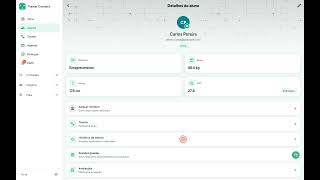

Workouts and exercises

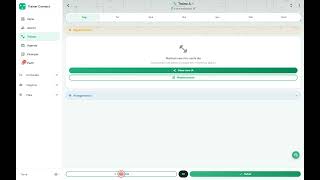


Assessments and progress


Schedule


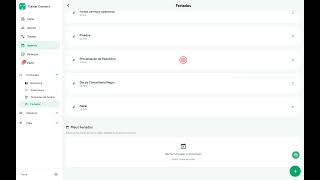
Finance


Client engagement


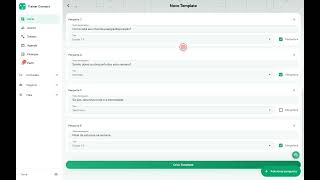

Growth and management


Frequently asked questions
Get your questions answered
You don't need the old password. The app sends a link to your email and you set a new one. The steps are the same in the phone app and on web.trainerconnect.com.br.
- On the login screen (the title reads Welcome back!), tap Forgot my password, the blue line right under the password field.
- The Recover password screen opens. Type the email your account was created with and tap Send.
- The screen changes to Email sent! Open your inbox and tap the link in the Trainer Connect email. Don't see it? Check the spam folder and, in Gmail, the Promotions tab — the message on the screen tells you to check spam too. The Resend email button unlocks 60 seconds after the first send.
- The link opens Create your new password. Fill in New password (the note under the field asks for at least 10 characters), repeat it in Repeat the new password and tap Reset password.
- You get Password reset! Tap Go to login and sign in with your email and the new password.
If the screen complains, it is one of these three messages:
- We couldn't find an account with this email. — the address you typed is not the one on the account. Check it letter by letter with your trainer: a missing dot, a missing underscore, or a wrong domain.
- Too many attempts. Wait a few minutes before trying again. — you tapped Send too many times. Wait a few minutes and try again.
- Link expired or invalid. Please request a new reset email. — that link was already used or it timed out. Go back to Recover password and request another one.
Do you sign in with Google or Apple and never set a password? Use Forgot my password on the login screen with the same Google or Apple email. The link arrives the same way, and the password you create also works for email-and-password sign-in. There is nothing to look for in the store and no need to contact support.
Never got the welcome email? If your trainer created the account, the address is usually misspelled: they fix the Invitation email field on the student's page and the invitation goes out again on its own. If you were registered with only your WhatsApp number, no email is sent at all — in that case your trainer sets the password from the student's page, under Reset password.
Still stuck? Use the support chat on this page and say which step stopped you and what the screen showed. Never send us your password.